




Whether you’re launching a youtube channel, creating content for social media platforms, or producing professional videos for clients, your choice of video editor shapes everything from workflow speed to final quality. The good news? 2025 offers more options than ever—from powerful free video editor apps running in your browser to professional quality desktop suites used on Hollywood productions.
But with so many choices, finding the right fit can feel overwhelming. Should you go with a free plan on a web-based tool, or invest in editing software like Adobe Premiere Pro? Does a free online video editor have enough features for your video projects?
This guide breaks down the best video editing tools available right now, comparing everything from AI features to export quality. By the end, you’ll know exactly which editor matches your skill level, budget, and content goals.
A video editor is software—either online or desktop—used to cut, arrange, and enhance video, audio, images, and text into a finished video. Think of it as your digital workbench where raw footage transforms into polished video content ready for sharing.
Virtually every video editing tool includes these fundamental capabilities:
Modern editors use a multi-track timeline where you can layer different elements on separate tracks. Picture it like stacking transparent sheets:
This structure gives you granular control over how elements interact—like having music ducking automatically when dialogue plays, which is essential for professional-quality videos.
The distinction matters for your workflow:
Browser-based editors (Clipchamp, VEED, Clideo, Adobe Express) run entirely in your web browser. No download required. You upload media, edit on a cloud-based timeline, and export directly. They work on Mac, Windows, and Chromebook without installation.
Desktop applications (Adobe Premiere Pro, DaVinci Resolve, CapCut desktop, Final Cut Pro) require installation but offer more processing power, advanced tools, and smoother handling of high-resolution footage.
In 2025, many editors blur this line by offering both web and desktop versions. CapCut, for instance, runs on mobile, desktop, and browser—letting you start editing on your phone and finish on your laptop, before moving on to post-production.
Today’s best editors include ai video editing tools that automate tedious tasks:
These features dramatically reduce the technical expertise needed to create professional content, such as storyboarding for video in 10 simple steps.
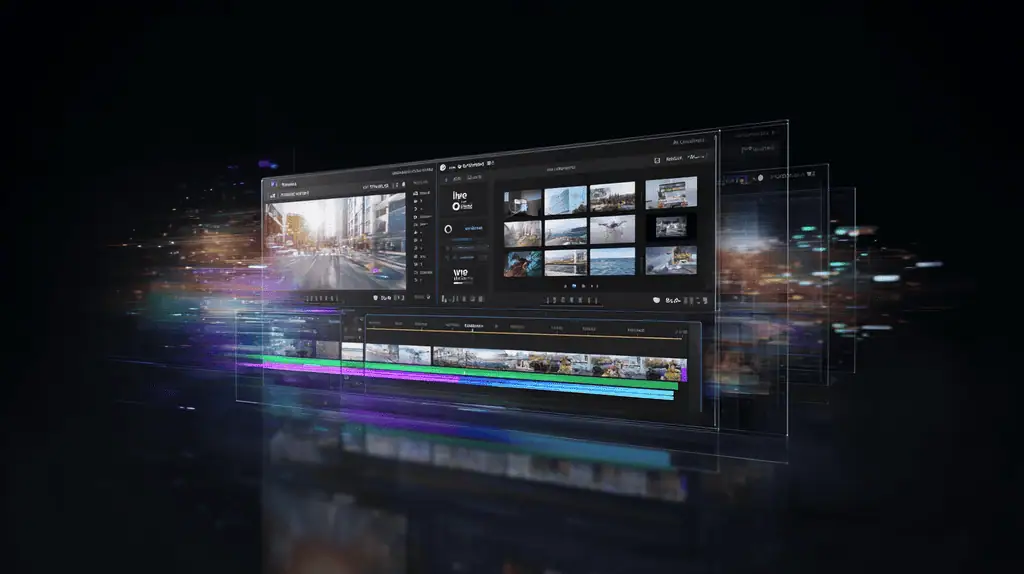
Here’s your at-a-glance summary of the top tools and who they serve best. Use this to quickly identify which editors deserve a closer look for your specific needs.
Adobe Premiere Pro (Windows, macOS) Best for professional YouTube creators, filmmakers, and branded content. Deep integration with After Effects and Photoshop. Subscription-only at around $22–$35/month.
DaVinci Resolve (Windows, macOS, Linux) The industry standard for color grading with a remarkably powerful free tier. Serious editors love it for the all-in-one editing, color, audio, and visual effects workflow. Studio version is a one-time purchase around $295.
Final Cut Pro (macOS only) Fast, optimized editing for Mac users and Apple ecosystem loyalists. Popular with YouTubers who value speed. One-time purchase around $300.
CapCut (web, mobile, desktop) The go-to tool for TikTok, Reels, and Shorts creators. Strong video templates, trending effects, and auto-caption features. Generous free tier with optional Pro subscription.
Clipchamp (web, Windows, iOS) Built into Windows 11 and integrated with Microsoft 365. Perfect for everyday creators and business how-to videos. Free plan exports in 1080p HD without watermarks.
VEED (web) Fast browser-based editing with excellent AI subtitles supporting 100+ languages. Great for social media sharing and quick turnarounds.
InVideo (web) Marketing teams and agencies love it for template-driven social ads. Massive stock library integration. Templates designed for specific platforms.
Clideo and Adobe Express (web, mobile) Best for quick one-off edits—crop, resize, simple social posts. Adobe Express adds brand kits and design integration.
Several tools let you create videos and export without watermarks on free plans:
| Tool | Free Export Quality | Watermark on Free? |
|---|---|---|
| DaVinci Resolve | Up to 4K | No |
| Clipchamp | 1080p HD | No |
| CapCut | 1080p/4K | No (most exports) |
| VEED | 720p | Watermark on free |
| InVideo | 720p | Watermark on free |
Most tools offer free tiers with limitations. Paid plans generally range from $10–$35/month in 2025:
Whether you’re evaluating Adobe Express, Clipchamp, VEED, or Clideo, these are the must-have video editing features present in most leading tools.
The timeline is where you edit videos. Look for:
Better editors let you ripple edit (shift all following clips when you make changes) and slip/slide clips within the timeline.
Basic visual controls you’ll use constantly:
Control how time moves in your footage:
Even basic color tools make a difference:
Professional tools like DaVinci Resolve offer advanced color grading with curves, qualifiers, and node-based corrections—overkill for casual edits but essential for film work.
Sound quality often matters more than video quality. Key audio features include:
What formats can you export videos in?
Text overlays and graphics separate amateur footage from engaging videos. For TikTok, Shorts, Reels, and marketing content, these elements are essential.
Every serious editor offers text customization:
Captions aren’t optional anymore—they’re expected. Viewers scroll muted on mobile, so text carries your message.
Manual captions: Type and time each line yourself
AI-generated captions: Tools like VEED, Clipchamp, and CapCut transcribe speech automatically, then let you edit for accuracy. Most support 70–100+ languages.
Caption styling—font, size, position, highlight colors—helps match your brand and improve readability.
Beyond text, look for:
InVideo and Adobe Express excel here, offering predesigned motion graphics for:
Instead of building from scratch, you select a template, swap in your footage and text, and export. A 9:16 TikTok with animated captions and emojis that might take an hour to build manually takes five minutes with templates. If you want to learn more about video styles, you can explore the options that best fit your message and audience.
In 2024–2025, AI features have become a key differentiator among video editors. These tools automate tasks that used to require hours of manual work or expensive specialists.
Automatic transcription is now remarkably accurate:
Typical workflow: Upload footage, click “Auto-captions,” wait 30 seconds to 2 minutes, then edit any errors. You can add captions to an hour-long video in minutes instead of spending an afternoon typing.
Turn scripts into natural-sounding narration without recording:
This is game-changing for tutorial creators, explainer videos, and anyone uncomfortable recording their own voice. Clipchamp, InVideo, and VEED all offer text-to-speech features.
Separate subjects from backgrounds without green screens:
CapCut and many web-based editors handle this automatically. The technology works best with clear subject-background contrast and struggles with complex edges like hair.
Clean up imperfect recordings:
For podcasters, webinar hosts, and anyone recording outside a treated studio, AI audio cleanup transforms unusable audio files into clean, professional content.
Advanced AI goes beyond fixing problems to actively helping you create:
These features help create videos faster while maintaining quality.
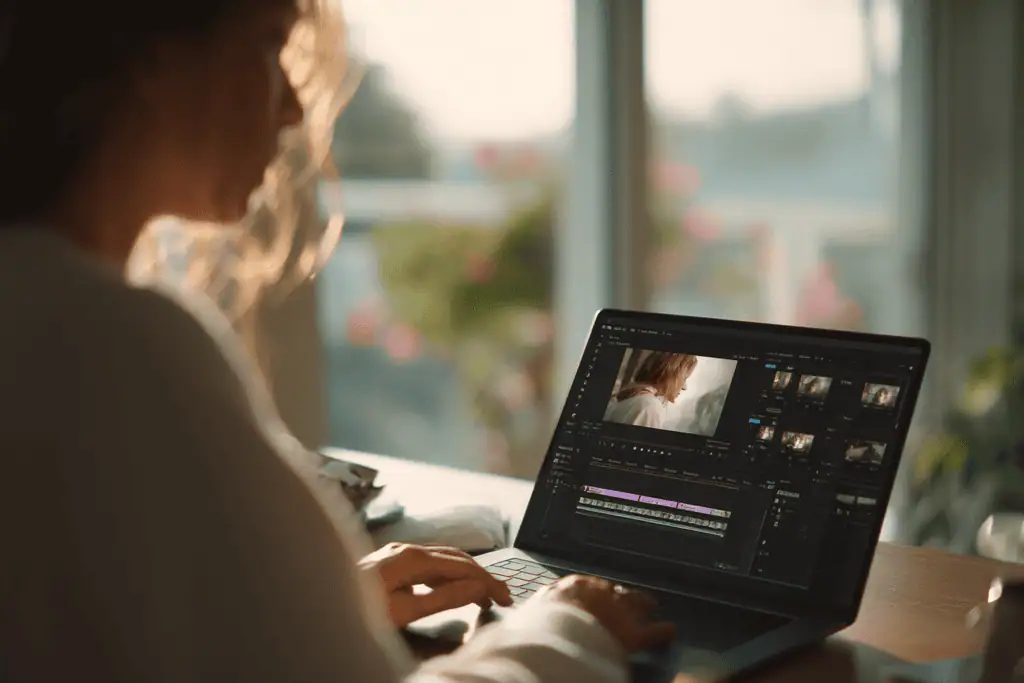
Your choice between browser-based tools and desktop apps affects more than just installation—it shapes your entire workflow for video creation.
Online tools like Clipchamp, VEED, InVideo, Clideo, and Adobe Express offer compelling benefits:
For teams, cloud storage enables collaboration—multiple people can access projects, leave comments, and work asynchronously.
Installed apps like Premiere Pro, DaVinci Resolve, Final Cut Pro, and CapCut desktop provide:
Professionals working on film projects, documentaries, or broadcast content typically need desktop power.
Many online platforms include:
Premium plans typically add more storage, longer project history, and priority rendering.
For creators focused on vertical video content, mobile editing makes sense:
CapCut mobile and Adobe Express mobile excel here. LumaFusion offers more advanced mobile editing for iPad users.
Here’s a practical workflow for creating a YouTube tutorial:
No software installation. No file transfers. Start editing immediately after recording.
Before committing to any video editor, verify it handles your footage and delivers the export quality you need.
Most editors accept common formats without conversion:
| Category | Common Formats |
|---|---|
| Video | MP4, MOV, AVI, MKV, WebM |
| Audio | MP3, WAV, AAC, M4A |
| Images | JPG, PNG, GIF, WebP |
Tools like Clipchamp and Clideo handle nearly all everyday formats. Professional editors add support for camera-specific codecs (RED, ProRes, BRAW).
Resolution support varies significantly between free and paid tiers:
Free tier exports:Pro tip
: For quick social posts, 1080p is plenty. Save 4K for portfolio pieces, client work, or content where quality is a primary selling point.What affects editing speed and smoothness?
Desktop editing:
Browser editing:
Many editors include built-in stock media:
Using integrated libraries avoids external downloads and keeps projects lighter. Some free plans offer limited stock access; premium tiers unlock unlimited number of assets, and AI innovations are transforming how creators access and use these resources.
The best editor depends on your experience level, budget, device, and what kind of video content you’re creating. There’s no universal “best”—only what’s best for your situation.
Consider these factors when choosing:
Skill level:
Content type:
Budget:
Platform:
Beginner influencer starting out → CapCut or Clipchamp free Why: Templates help you create amazing videos quickly, no cost barrier, easy learning curve. For those looking to take their content to a professional level, consider partnering with a leading video production company.
Small business marketer → InVideo, VEED, or Adobe Express Why: Template-driven workflow, brand kits, professional videos without video editing experience
Aspiring YouTuber building a channel → Clipchamp, DaVinci Resolve free, or Premiere Pro Why: Balance of features and growth potential; upgrade as you scale
Indie filmmaker with serious ambitions → DaVinci Resolve Studio or Premiere Pro + After Effects Why: Industry-standard tools, advanced color grading, full creative control
Here’s practical advice that saves money and frustration:
Most creators discover that free tools cover 80% of their needs. The remaining 20% determines whether paid features are worth it for your specific workflow.
Don’t try to find the “perfect” editor on day one. Start creating, learn your preferences, and let experience guide your choice.
Browser-based tools like Clipchamp (built into many Windows 11 PCs), Adobe Express online video editor, and CapCut web/mobile are among the easiest options for anyone with zero editing experience. They include templates, drag-and-drop timelines, and one-click features like auto-captions. You can upload footage, started upload any media you want, and be editing within minutes without any technical expertise or prior video editing experience.
Yes—platforms such as Clipchamp, VEED, InVideo, Clideo, and Adobe Express run directly in your browser. Simply upload media video online, edit on the web-based timeline, and export MP4 files. Projects save automatically to the cloud, and you can access them from any device. For more ways to streamline your filmmaking workflow, check out some of the best production apps. That said, large 4K projects or complex multi-layer edits may still be more efficient on desktop apps where local processing handles heavy footage better.
Watermarks are typically tied to free plans. Some tools allow watermark-free exports even on free tiers: DaVinci Resolve, many CapCut exports, Clipchamp (1080p), and some Adobe Express outputs. For tools like VEED and InVideo, you’ll need to upgrade to a paid subscription to remove logos and unlock higher resolutions. Always check export settings before rendering your finished video to avoid surprises.
CapCut dominates short-form video editing thanks to its auto-captions, trending templates, effects library, and direct TikTok integration. It’s designed specifically for vertical content and makes it easy to create stunning videos quickly. Clipchamp, Adobe Express, and VEED also work well for vertical aspect ratios, quick resizing, and subtitle tools. All support the 9:16 format and include features specifically designed for social media sharing.
Browser-based editors can run on modest laptops because most processing happens in the cloud. However, heavy 4K/8K or multi-layer projects in Premiere Pro, DaVinci Resolve, or Final Cut Pro benefit significantly from more RAM (16–32GB+), a recent CPU, and a dedicated GPU. If you’re just getting started, use lighter HD workflows and simple online tools while you learn. You can always trim footage and create professional content on basic hardware, then upgrade equipment as your projects grow more complex.
Choosing the right video editor comes down to matching your workflow, budget, and content creation goals with the tool that delivers results without unnecessary friction. The landscape in 2025 offers genuinely powerful free options alongside professional suites—meaning there’s no excuse not to start editing today.
Pick 2–3 tools from this guide, test them with a real project, and discover what works for your style. The best free video editor might be all you ever need, or you might outgrow it in months. Either way, the only way to find out is to start editing and see where your video projects take you.
Ready to bring your project to life with our professional video production services? Get in touch with our team to discuss what you’re looking for, along with any additional notes you wish to share. Simply fill in the form and we’ll get back to you shortly.
"*" indicates required fields
© 2025 NEEDaFIXER
This is a unique website which will require a more modern browser to work!
Please upgrade today!